Scenes
Car dealership backgrounds for your stock photos, outdoors.
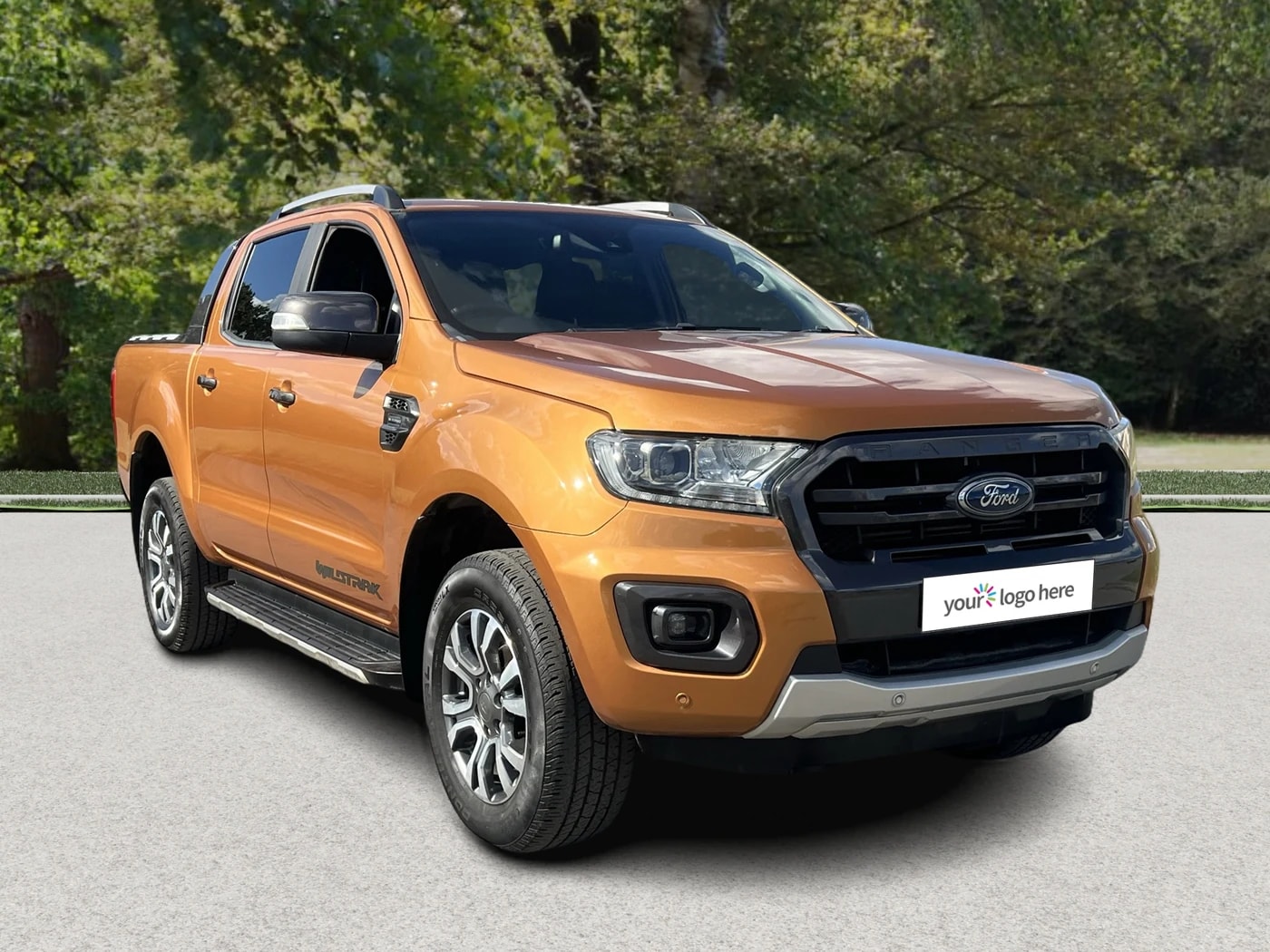
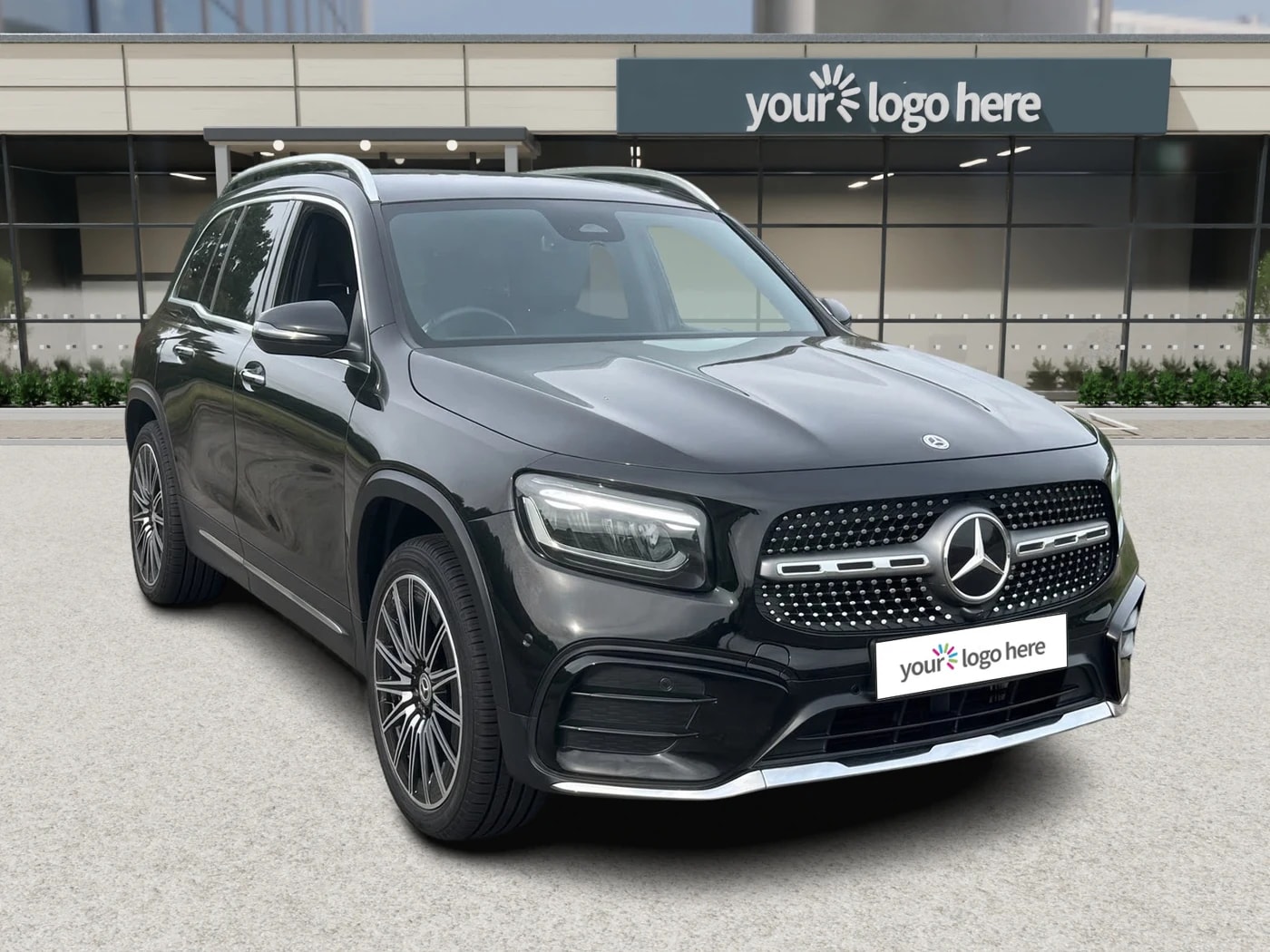
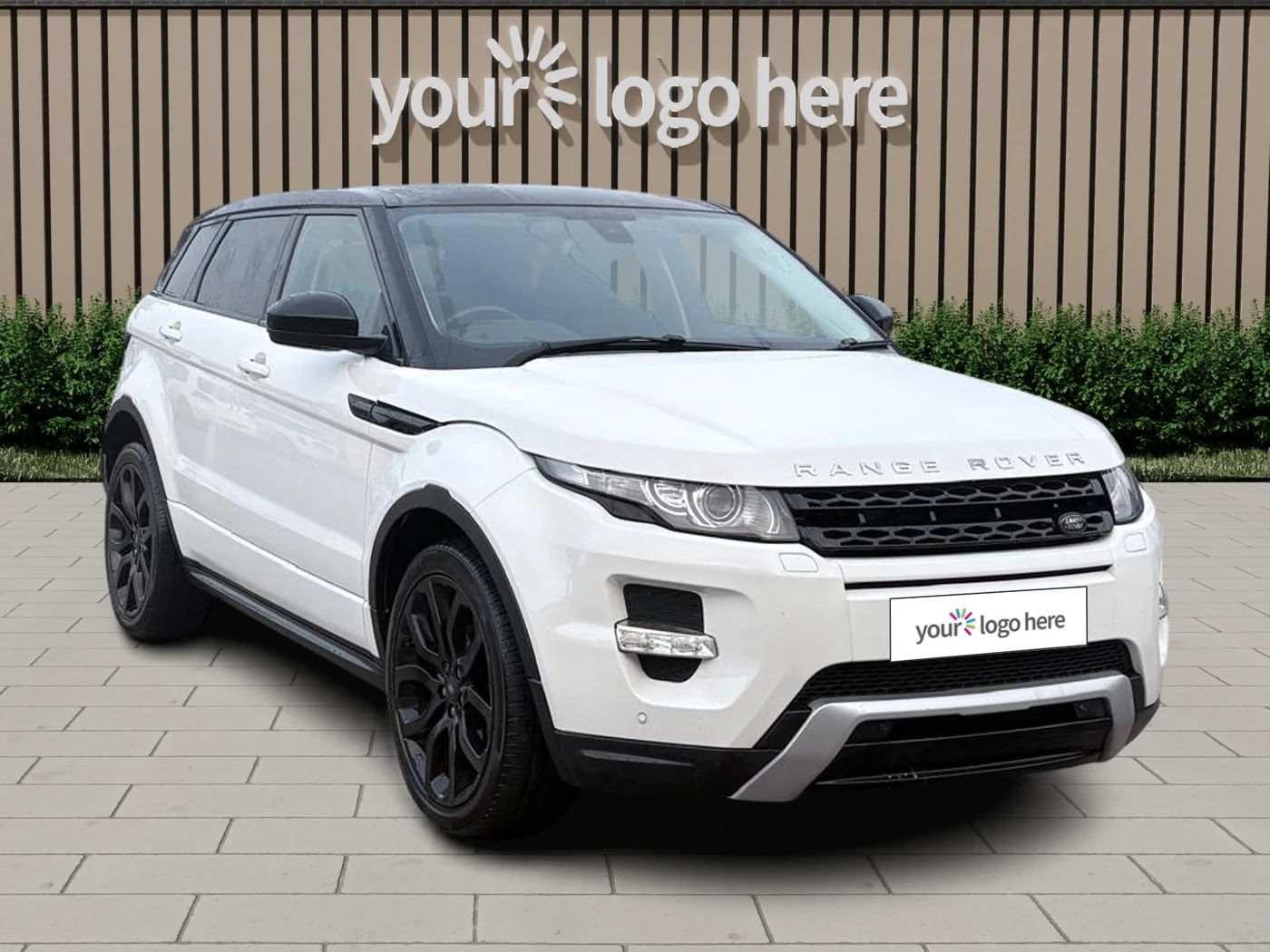
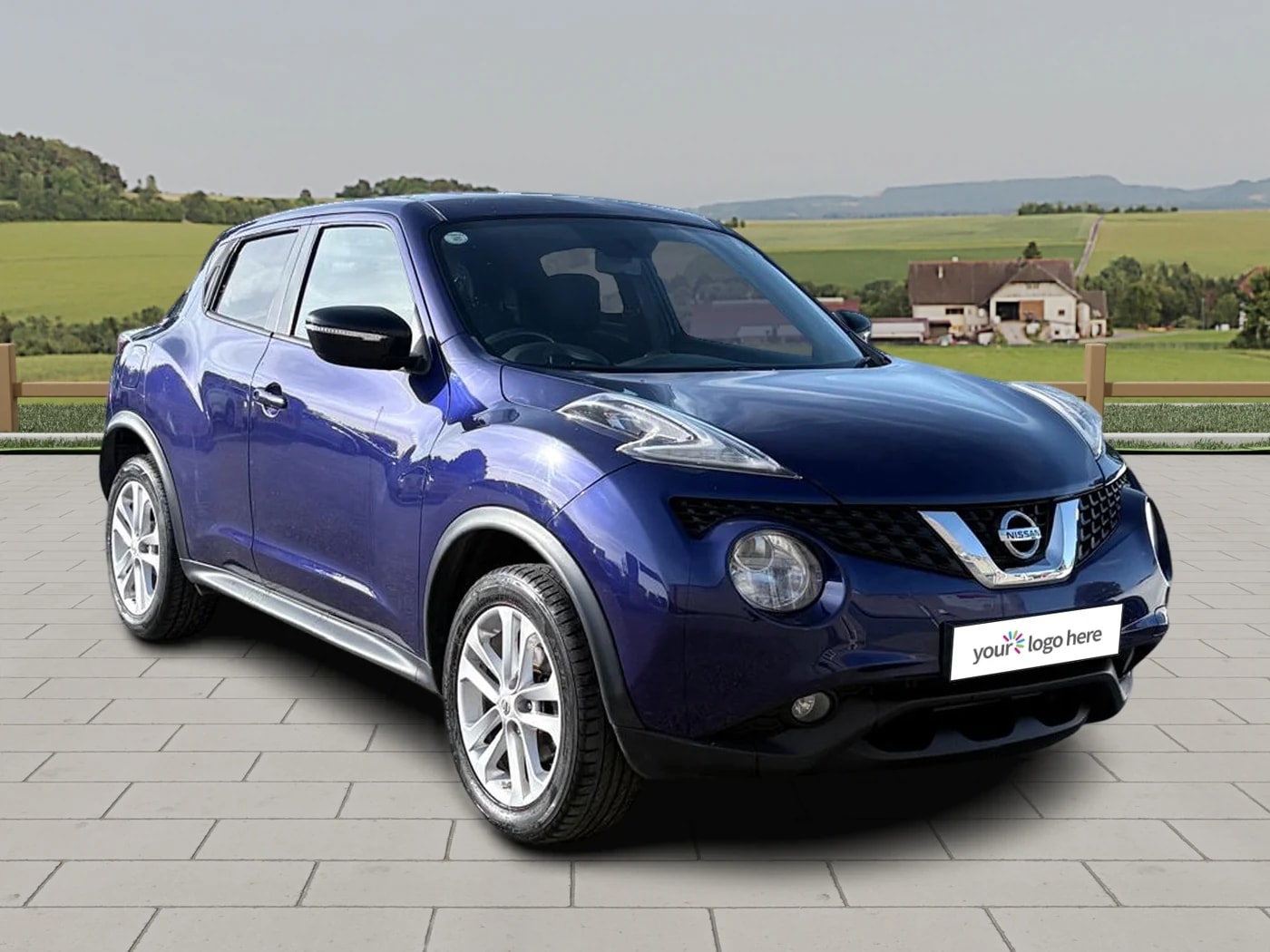
Scenes are Motuva's outdoor backgrounds. Pick a showroom front, a wall with your logo on it, or open scenery, and every car you photograph is placed there at your photo's own camera angle. Ready-made in the Library on every plan.
What it does
Outdoors, without the location shoot.
A Scene is an outdoor setting rendered around your car, the same way a studio is. Motuva cuts the car from your own photo, renders the Scene at that photo's camera angle and places the car in it with a matching shadow. The car is yours and is never redrawn. Only the setting changes.
There are four kinds, each in a range of styles.
- Full WallA full wall behind the car, in render, timber or cladding.
- Feature WallA statement wall in brick, stone, concrete, timber or metal.
- Showroom FrontA dealership frontage behind the car, from an everyday dealer to a flagship.
- Open SceneryNo building at all: woodland, lakeside, parkland or open countryside.
Why it matters to a dealer
One setting outside, the same for every car.
Some stock looks right in a studio. Some looks better outside: a 4x4 against trees, a prestige car in front of a showroom. A Scene gives you that picture from a phone photo taken wherever the car is parked, with the same sky and the same ground under every car, so your listings read as one dealership and not a set of photos taken on different days.
On a wall or a showroom front your logo is part of the Scene, as 3D signage, back-lit or multi-print depending on the Scene. The photo carries your name wherever it is shared.
Where it fits in your workflow
Pick one from the Library, or build your own.
The Library holds ready-made Scenes on every plan, Free included. Choose a style, save one, and it becomes the background your adverts use. On Pro and Ultra you can also build a Scene yourself, choosing its type and style, the backdrop, the sky, the ground and what the car stands on, and save it.
A Scene sits beside your studios under Studios, and the phone app has the Library too. Switch whenever you like. Adverts you have already made keep the background they were made in.
How it works
How Scenes works.
Open the Library
In the web app, select Studios, then Library, and set Environment to Scene.
Choose a style
Full Wall, Feature Wall, Open Scenery or Showroom Front.
Add your logo
Select Add your branding where the Scene has room for one. Open Scenery has none.
Save it
Save to studios. It becomes your active Scene.
Create an advert
Add a car's photos. Each one is placed in your Scene, and close-ups sit on its background.
From the blog
Related reading.
A virtual car showroom is an online stock gallery that lets buyers research and shortlist cars without visiting. What it means in practice for dealers.
Outdoor car photography for UK dealers — the right locations, the right light, and how to handle British weather when it refuses to cooperate.
Car photo background: studio vs outdoor — what each signals to buyers, why consistency decides it at dealer scale, and how to get both.